
How to get started with ViewCompanion
Welcome to ViewCompanion
ViewCompanion is designed for viewing, annotation, printing, and converting plot and vector files — including PDF, DWF, DWG, HPGL, HPGL/2, CGM, and other popular formats. This guide introduces the main features to help you get started quickly.
1. Installation & Setup
- Select the edition you want to evaluate. Three editions are available: Standard, Pro, and Premium.
You'll find more information about the different editions at the bottom of this page. - Run the installer and follow the prompts.
- Launch ViewCompanion — you’ll see the main window.
- Initial screen after starting ViewCompanion:
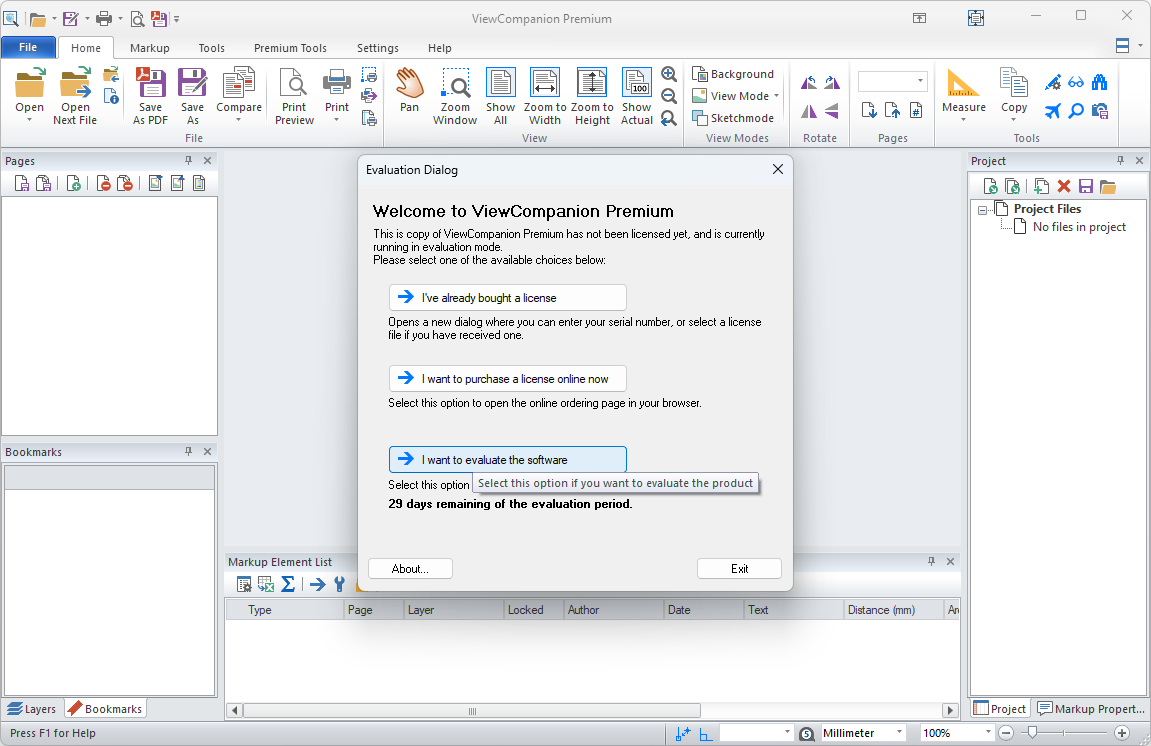
Until you enter a valid serial number, you will be presented with three options at startup, as shown above.
These options are:
- I've already bought a license
Select this option if you have purchased a license and received a serial number. - I want to purchase a license now
Select this option to open a web page where you can purchase a license. - I want to evaluate the software.
Select this option to run the software in evaluation mode.
👉 If you do not yet have a license, choose I want to evaluate the software. All features will be available, but watermarks will be added to converted output files.
2. Opening Your First File
- Click the Open button found in the Home Tab.
- Select one or more files and press the open button.
- Once the file is loaded it will appear in the main view:
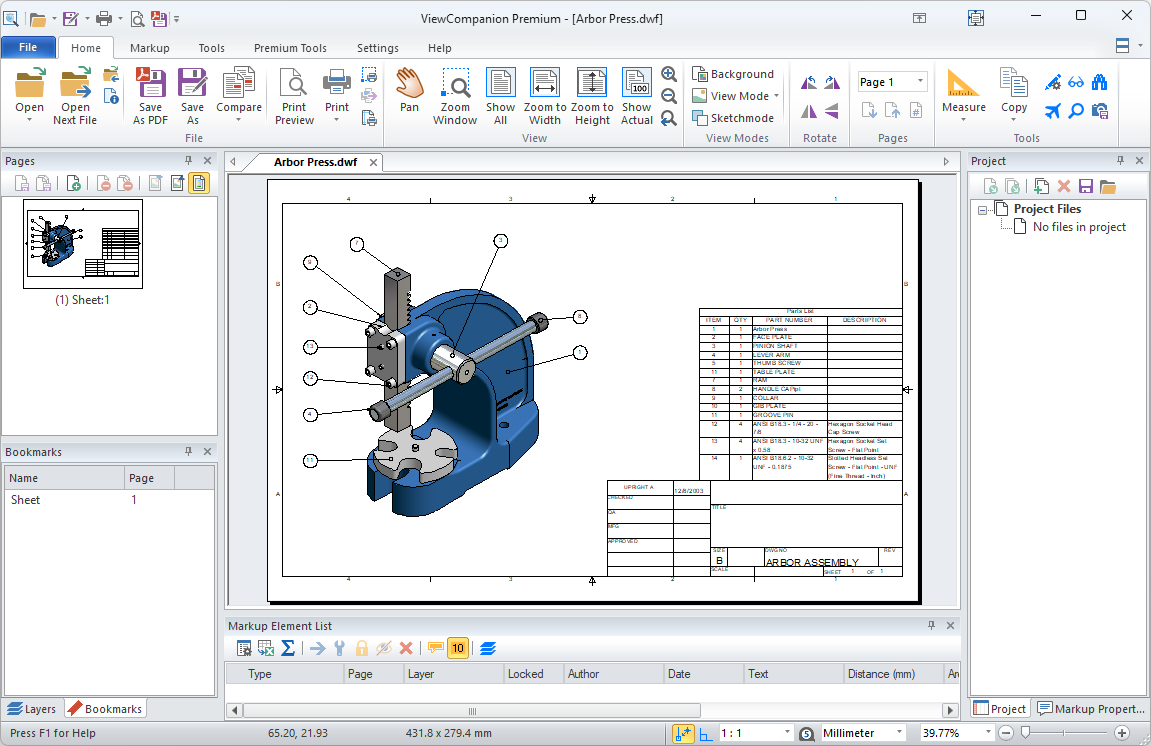
👉 Drag and drop files directly from Windows Explorer into ViewCompanion.
3. Navigating the Workspace
Once a file is open, efficient navigation is essential for inspecting details, performing measurements, and adding annotations. ViewCompanion provides smooth and precise pan, zoom, and view controls, allowing you to move quickly between overview and fine-detail inspection without losing context.- Zoom: Scroll the mouse wheel, or use the + / – keys.
- Pan: Press and hold the mouse wheel (middle mouse button) and drag to move around the document. Alternatively, use the arrow keys, or select the Pan tool in the Home tab and drag with the left mouse button.
- Fit to Screen: Click the Show All button in the Home tab to fit the entire drawing in the window.
- Zoom Window: Select the Zoom Window button, then drag with the left mouse button to draw a rectangular box around the area of interest. The selected area will be zoomed to fill the entire window.
4. Measurements
ViewCompanion includes tools for inspecting and analyzing geometry in your files:- Measure Distance: Use the measurement distance tool to check distances and clearances. Snap to Objects is enabled by default and can be toggled using the Toggle Snap button or the F9 key.
- Measure Area: Use the area measurement tool to calculate enclosed areas, such as regions, filled shapes, or closed outlines.
- Units: Switch between metric and imperial units using the units dropdown at the bottom of the window, or via the application settings.
- Query: Select geometry to view object properties such as entity type, layer name, line width, and other attributes.
5. Markup & Annotation
ViewCompanion provides a rich set of annotation and markup tools that let you review, comment on, and clarify drawings without modifying the original file.- Add text notes, leaders, arrows, rectangles, circles, and freehand markups to highlight areas of interest.
- Use different colors, line widths, and fonts to distinguish between comment types (e.g., review notes, takeoff notes, approvals).
- Place annotations on separate markup layers, allowing them to be shown or hidden independently from the drawing.
- Lock markup layers to prevent accidental changes during review sessions.
- Combine measurements and annotations to clearly document digital takeoff results directly on the drawing.
- Export annotations together with the drawing to PDF, DXF, or image formats, or export markup layers separately for downstream workflows.
👉 Annotations make ViewCompanion ideal for design review, digital takeoff documentation, and collaboration across engineering, construction, and manufacturing teams.
6. Converting & Sharing
ViewCompanion makes it easy to convert, share, and distribute technical drawings and documents across teams and workflows—without requiring recipients to have specialized CAD software.- Convert drawings and documents between a wide range of supported formats, including PDF, TIFF, DXF, SVG, HPGL/PLT, and common raster image formats.
- Batch-convert multiple files or entire folders to save time and ensure consistent output across projects.
- Combine files from different formats into a single multi-page PDF or TIFF for convenient sharing and archiving.
- Preserve annotations, measurements, and markups during conversion so critical review information is always included.
- Export drawings with annotations to PDF or image formats for easy review by colleagues, customers, or subcontractors—no CAD software required.
- Automate conversions and printing using command-line (CLI) support, making ViewCompanion easy to integrate into scripts, batch jobs, and enterprise workflows.
👉 With ViewCompanion, converting and sharing technical drawings becomes a simple, reliable process—helping teams communicate clearly and work more efficiently.
7. Digital Takeoff (Measurements & Quantities)
ViewCompanion is well suited for digital takeoff, enabling you to extract accurate measurements and quantities directly from all supported file formats.- Set measurement units (mm, inches, feet, meters) in Options → Units to match project requirements.
- Select the correct scale or calibrate it manually when drawings are not provided at the correct scale.
- Measure multiple segments or areas to accumulate quantities such as floor areas, perimeters, and wall lengths.
- Add measurement annotations directly to the drawing to clearly document takeoff values.
- Export drawings with visible measurements to PDF, DXF, or image formats for review or reporting.
- Export all takeoff data to Excel or CSV format for further analysis or cost estimation.
👉 Digital takeoff in ViewCompanion helps eliminate manual scale calculations and reduces errors when estimating materials or reviewing design data.
8. Printing
ViewCompanion offers extensive printing and page layout controls, making it ideal for both quick reviews and high-quality production output.- Open File→Print Preview to configure all print settings before sending output to the printer.
- Choose between scaled printing (fit to page or custom scale) and true 1:1 printing for accurate dimension verification.
- Use poster printing to split large drawings across multiple pages, with adjustable overlap for easy alignment.
- Enable N-up printing (multiple pages per sheet) to reduce paper usage for review sets.
- Add headers, footers, page numbers, dates, and file information for professional documentation.
9. Comparing Files
ViewCompanion includes a powerful file comparison tool that make it easy to identify differences between drawing revisions, supplier updates, or design changes.- Open two files to compare them and visualize the differences.
- Assign different colors to each file to clearly visualize additions, deletions, and modifications.
- Print or export comparison results to PDF format for documentation and review.
👉 File Compare helps ensure accuracy by making even small changes immediately visible.
10. Adding Watermarks to PDF Files
ViewCompanion includes a flexible PDF watermark tool for adding text based watermarks to your documents.Apply watermarks to the active file or use batch processing to handle multiple files at once.
Customize text, rotation, color and transparency to fit your needs.
Export the result to a new PDF for easy sharing or documentation.
👉 PDF Watermark helps ensure consistency and clear document identification across your workflow.
11. Editions
ViewCompanion is available in three editions— Standard, Pro, and Premium — allowing you to choose the feature set that best fits your workflow.
- ViewCompanion Standard focuses on viewing, measuring, annotating, printing, batch processing, and converting file formats such as PDF, HPGL, HPGL/2, CGM, DWF, and related formats.
- ViewCompanion Pro builds on Standard by adding support for image-based file formats (such as TIFF, CALS, JPEG, PNG, and BMP) and includes advanced PDF merge and split functionality, making it ideal for mixed vector and raster workflows.
- ViewCompanion Premium includes all Pro features and adds DWG support, advanced PDF tools, and powerful image-processing capabilities:
- Open, View and Convert AutoCAD DWG Files.
- Convert PDF files to CAD formats such as DXF and DWG (PDF to CAD).
- Create searchable PDFs from scanned documents using OCR.
- Split large-format PDF pages into multiple tiles.
- Access a wide range of integrated PDF tools and utilities.
- Perform advanced image-processing operations such as deskew, defox, binarization, and more.
Learn more about the differences between the Standard, Pro, and Premium editions using the links below:
ViewCompanion Feature Comparison Chart
ViewCompanion File Format Comparison Chart
Download your free 30-day trial today
12. Support
- If you have any questions, please check the Frequently Asked Questions page first.
- Join the support forum or contact support if you need help.