
Apply Watermarks to PDF Files with ViewCompanion
Apply watermarks to single files or batch process multiple PDFs
With ViewCompanion you can easily apply watermarks to your PDF files.
Adding watermarks is an effective way to improve document control, security, and identification.
By using text-based watermarks — such as Draft, Approved, or similar — you can clearly communicate a document’s status or ownership.
With support for both single-file and batch processing, you can efficiently apply consistent watermarks across multiple documents while preserving the original formatting.
It's a practical tool for both internal workflows and professional document distribution.
ViewCompanion offers three different ways to add watermarks to your PDF files:
- Add watermark to the currently active document →
- Add watermarks to multiple files using batch processing →
- Add watermark to a PDF file using the command line interface →
Under the Tools tab, you will find the following button to add a watermark to the active PDF file:

Press the button while having a PDF file loaded, and the following dialog will appear:
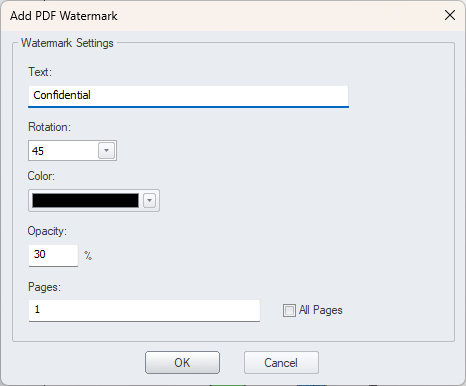
Using this dialog, you can configure watermark settings such as text, rotation, color, and opacity.
You can also choose which pages to apply the watermark to—either all pages or a specific page range.
If you select a page range, specify the pages as comma-separated values or ranges.
Examples:
- "1,2,3,7" : Add watermark to page 1,2,3 and 7.
- "1,2,4-7" : Add watermark to page 1,2,4,5,6 and 7.
Click OK to apply the watermark to the PDF file.
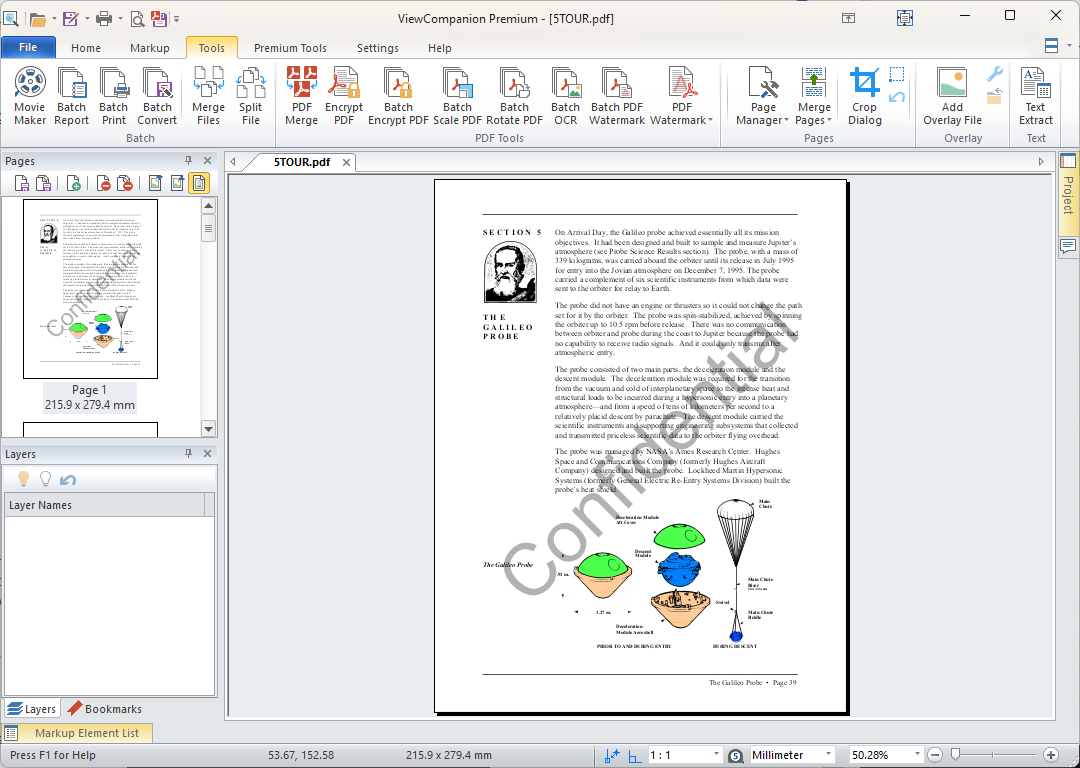
The image below shows a PDF with a watermark applied using the sample settings above:
Saving your changes to a new PDF
Click Save as PDF button on the Home tab to save your changes as a new PDF file.
Batch Processing
Go to the Tools tab to access the batch watermark feature for multiple PDF files.
Click the following button:

The batch PDF watermark dialog will then appear:
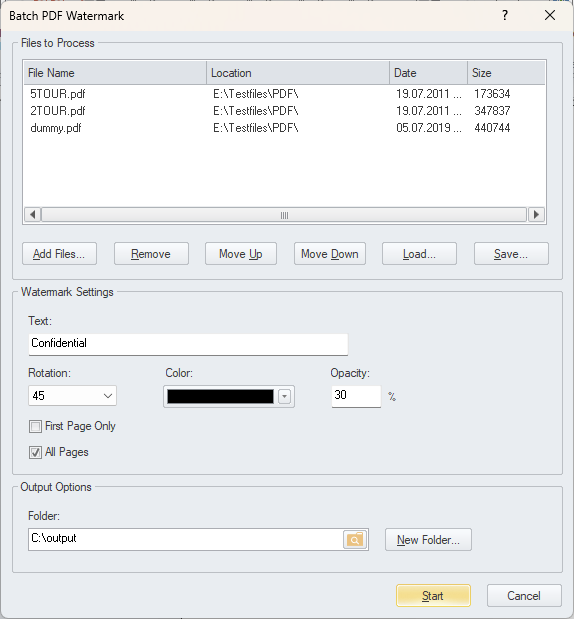
Configure watermark settings such as text, rotation, color, and opacity.
Choose whether to apply the watermark to all pages or only the first page.
Add your files, select an output folder, and click Start.
Adding watermark to PDF using the command line interface
ViewCompanion also supports adding watermarks to PDF files using the command line interface (CLI).
This allows you to automate watermarking tasks and integrate them into scripts or workflows, making it especially useful for processing large numbers of files quickly and consistently.
It is ideal for batch processing, scheduled tasks, and server-based environments where manual interaction is not practical.
ViewCompanion PDF watermark feature
The watermark feature is available in all ViewCompanion editions, including batch processing.
For an overview of available features in each edition, please see the
ViewCompanion Family Comparison Chart.
Use the links below for detailed information about each edition:
Read more about ViewCompanion Standard
Read more about ViewCompanion Pro
Read more about ViewCompanion Premium
Click here to download a 30-days trial now
Do you need to add PDF watermark capability to your own application?
ScConverter could be the solution you’re looking for.
ScConverter is a flexible solution designed for seamless integration into your application or server environment. '
It works across a wide range of technologies and can be accessed via a COM interface or as a native C++ DLL—
making it compatible with .NET (C#, VB.NET), C++ (Win32/Win64), Delphi, ASP.NET, and scripting environments like PowerShell and VBScript.
Click the link below for more information:
Read more about scConverter Conversion SDK